ON EVERY DESKTOP

SharedConX.Client

The lightweight tray application that makes automapping actually work — connecting shared mailboxes to Outlook automatically, the moment a user’s security group membership says they should have access.

Outlook ClassicNew OutlookOWARuns quietly in the system tray

What it does

SharedConX.Client runs in the background on the user’s machine. It reads the permissions SharedConX.Core has already applied via security groups, and keeps Outlook’s mailbox list in sync — no manual “Add shared mailbox” steps, ever.

Automatic automapping or accountmapping — mailboxes appear and disappear based on group membership
Works across Outlook Classic, the new Outlook, and OWA
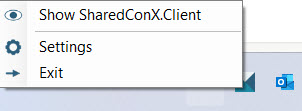
Runs from the system tray — Show, Settings, Exit
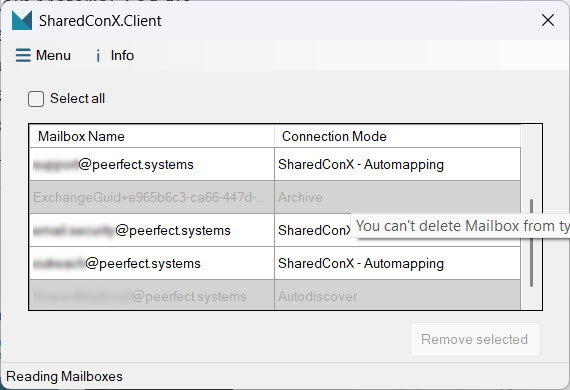
Live mailbox table shows connection mode per mailbox
Safe by design — archive and system mailboxes are protected from accidental removal
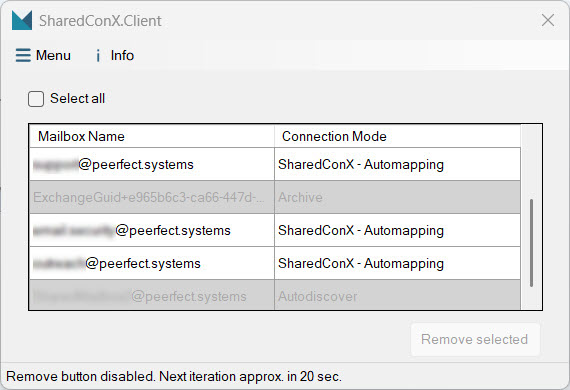
Periodic auto-refresh to stay in sync with group changes

The user experience

For end users, SharedConX.Client is nearly invisible — it sits in the tray and only surfaces when something needs attention.

System tray menu — Show, Settings, Exit. That's the entire day-to-day interaction.
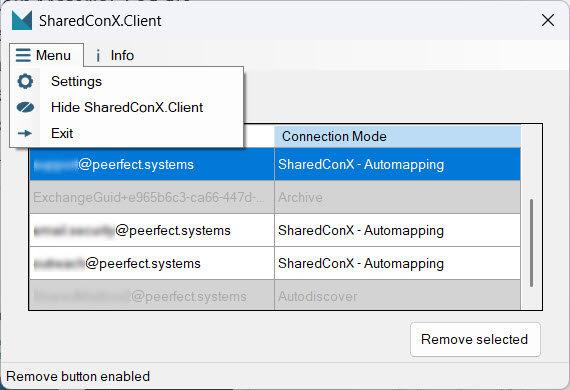
ShardConX.Client Menu
The mailbox list, with each entry's connection mode shown (Automapping, Archive, Autodiscover).
Protected entries (like Archive or Autodiscover mailboxes) can't be removed by accident.
Auto-refresh keeps the list current — next sync roughly 20 seconds away.

Detecting shared mailboxes in Outlook Classic

Outlook Classic doesn’t natively expose which mailbox is “shared,” so SharedConX.Client uses one of two detection methods, configured once in SharedConX.Manager:

Use App registrationSharedConX.Client connects to Exchange Online directly to determine the mailbox type. No changes to user objects required.
Use Custom AttributesAppends a marker string (e.g. SharedMailbox) to a chosen Exchange custom attribute.

Only one method is active at a time, but you can switch between them at any point.

Setup at a glance

A condensed version of the full setup guide. Every step below has a matching detailed walkthrough available on request.

1
Register the SharedConX.Client app in Microsoft Entra
Single-tenant registration, with a redirect URI for native/desktop clients (Public client/native).
2
Grant API permissions
Microsoft Graph — Application: MailboxSettings.Read. Delegated: Mail.Read.Shared, offline_access, openid, profile, User.Read. Admin consent required.
3
Add a certificate for authentication
A self-signed certificate is generated via PowerShell (SharedConX.Client_CertificateGenerator.exe is also available), then the public key is uploaded to the app registration.
4
Link it in SharedConX.Manager
Enter the Client ID and Certificate Subject Name under the SharedConX.Client tab, and choose the Outlook Classic detection method.
5
Deploy to end-user machines
The client certificate needs to be present on every machine running SharedConX.Client.

See the full rollout in your environment

A no-obligation initial consultation covers exactly how SharedConX.Client would be deployed across your organization.